
15. Archive Listing and Associated Modal
The Archive is managed as a single listing of past Conscious Collective editions. Each Archive entry contains the information shown on the timeline and the content that opens in its associated modal, so both parts are maintained together in the same entry.
15.1 Page Setup
Go to Content Manager → Page → Archives. The Archives page uses the two-column layout and the Primary Page Shell. The page standfirst appears below the title, and the archive timeline is added inside the Main Region.
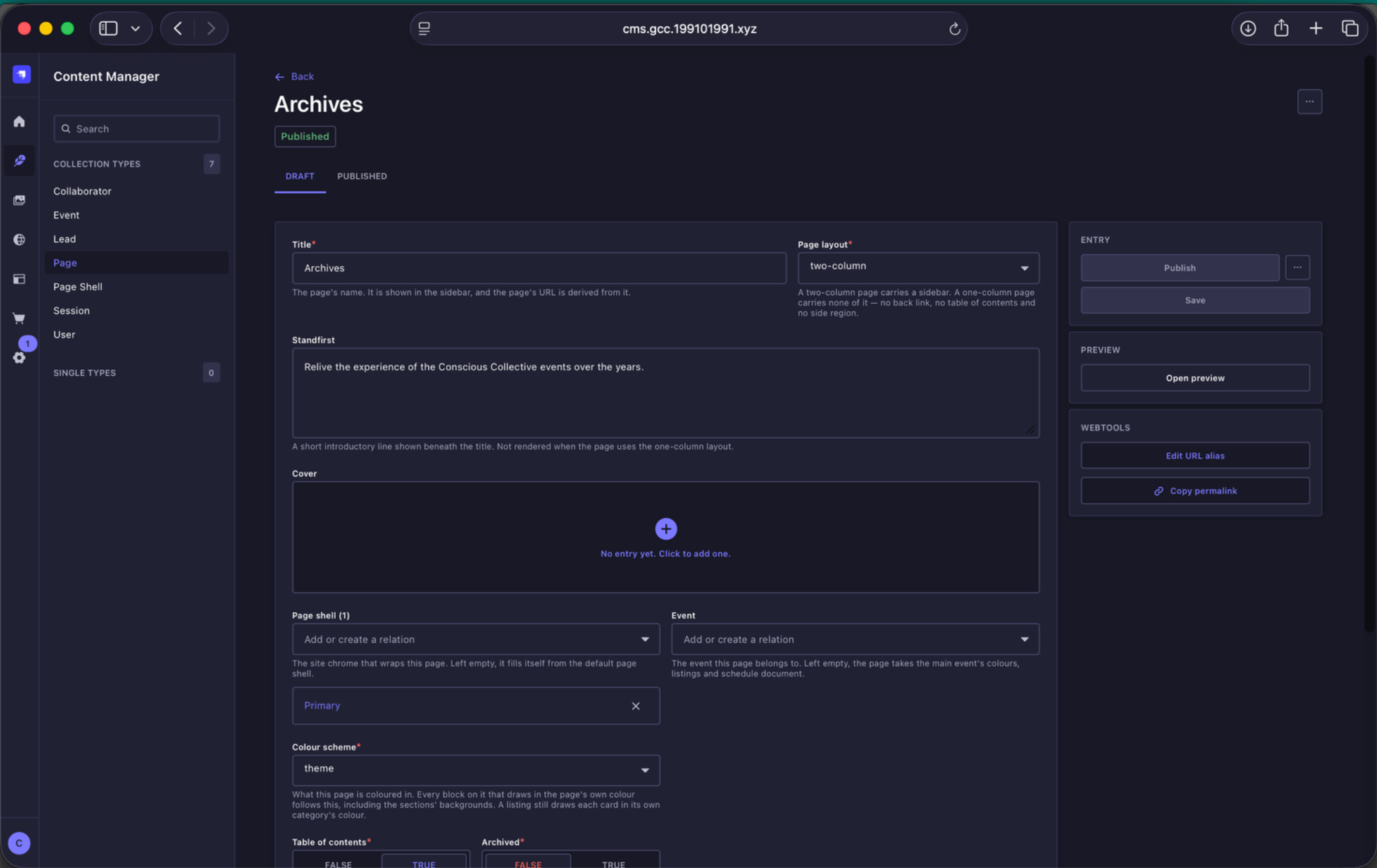
Archives page setup - The Archives page is a two-column page using the Primary Page Shell.
15.2 Archive Timeline
The page contains a section called The timeline. Inside this section, use the Archive timeline listing block to manage the editions that appear on the Archive page.
Each row in the Archive timeline represents one past edition. Keep the entries in the order in which they should appear on the website.
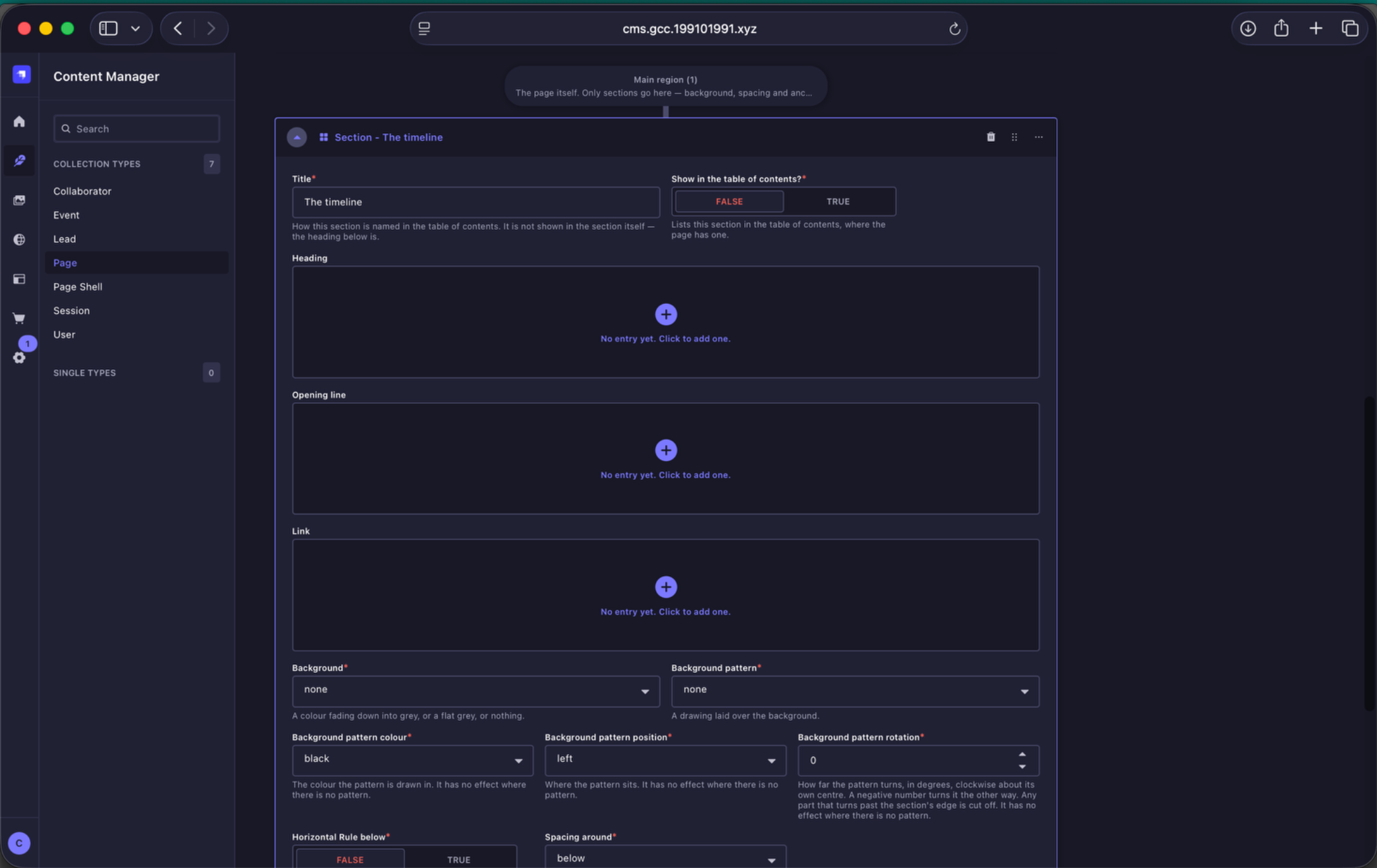
Archive timeline section - The Archive timeline listing sits inside the Main Region of the Archives page.
15.3 Archive Entry
For each annual edition, add or open an entry inside the Archive timeline listing. The listing entry includes:
- Name - the edition or theme title, such as Reclaiming Cool.
- Year - enter the year as a four-digit number.
- Description - a short summary of that edition. Keep this concise and refer to the Content Length & Formatting Guidelines for the recommended length.
- Featured images - upload three images for the animated image stack shown in the timeline. Follow the Archive Listing specifications in the Image Guidelines for the required crops and upload dimensions.
| Image field | Upload dimensions | Aspect ratio | Guidance |
|---|---|---|---|
| Front / top image | 1080 × 1350 px | 4:5 portrait | This is the front image in the animated Archive stack. |
| Back image 1 | 1350 × 1080 px | 5:4 landscape | One of the two landscape images layered behind the front image. |
| Back image 2 | 1350 × 1080 px | 5:4 landscape | Use the three images as one visual set and keep important subjects away from overlapping edges. |
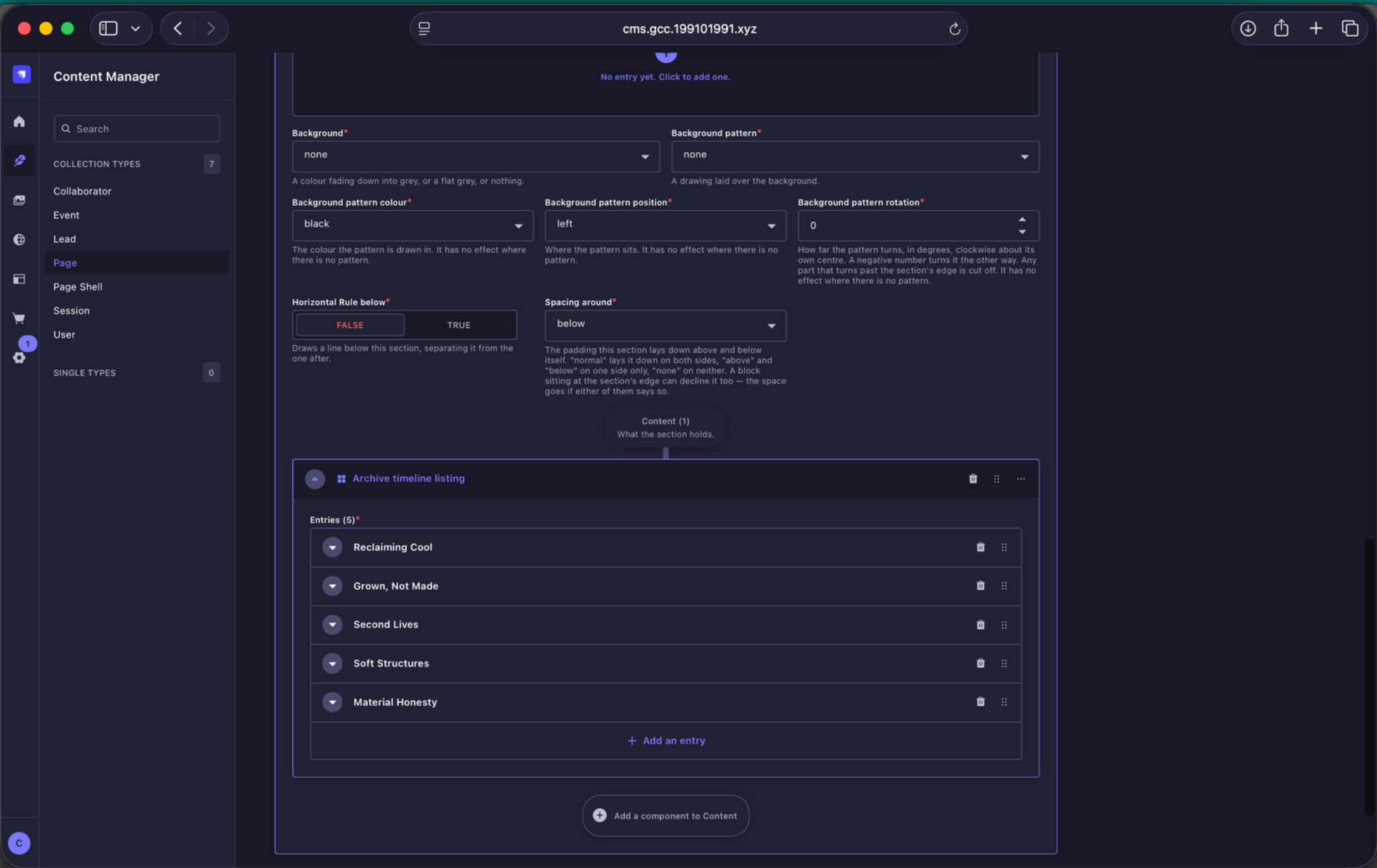
Archive timeline entries - Add one entry for each past edition and keep the sequence in the order it should appear on the timeline.
15.4 Associated Modal
The modal is not created as a separate Page entry. It is authored inside the same Archive timeline entry under Snapshots. This is the content a visitor sees after opening the snapshots for that edition.
The modal is flexible and can be built from the available content blocks. In the current example, the content includes a mix of WYSIWYG, Responsive image, and Image and content blocks. Use the combination and sequence that best suits the approved content for that past edition.
As with other flexible content pages, break the story into logical sections rather than placing everything inside one deeply nested block. Save and preview as you work so you can check how the modal sequence is translating on the frontend.
| Image field | Upload dimensions | Aspect ratio | Guidance |
|---|---|---|---|
| Landscape image with caption | 1632 × 1224 px | 4:3 | Use for landscape editorial imagery with a caption. |
| Vertical image with text | 1080 × 1920 px | 9:16 | Use for tall Story / Reel-format imagery. |
| Portrait image with text | 1080 × 1350 px | 4:5 | Use the standard Instagram portrait format. |
| Side-by-side portrait images | 1080 × 1350 px each | 4:5 | Use the same dimensions for both images so the pair aligns consistently. |
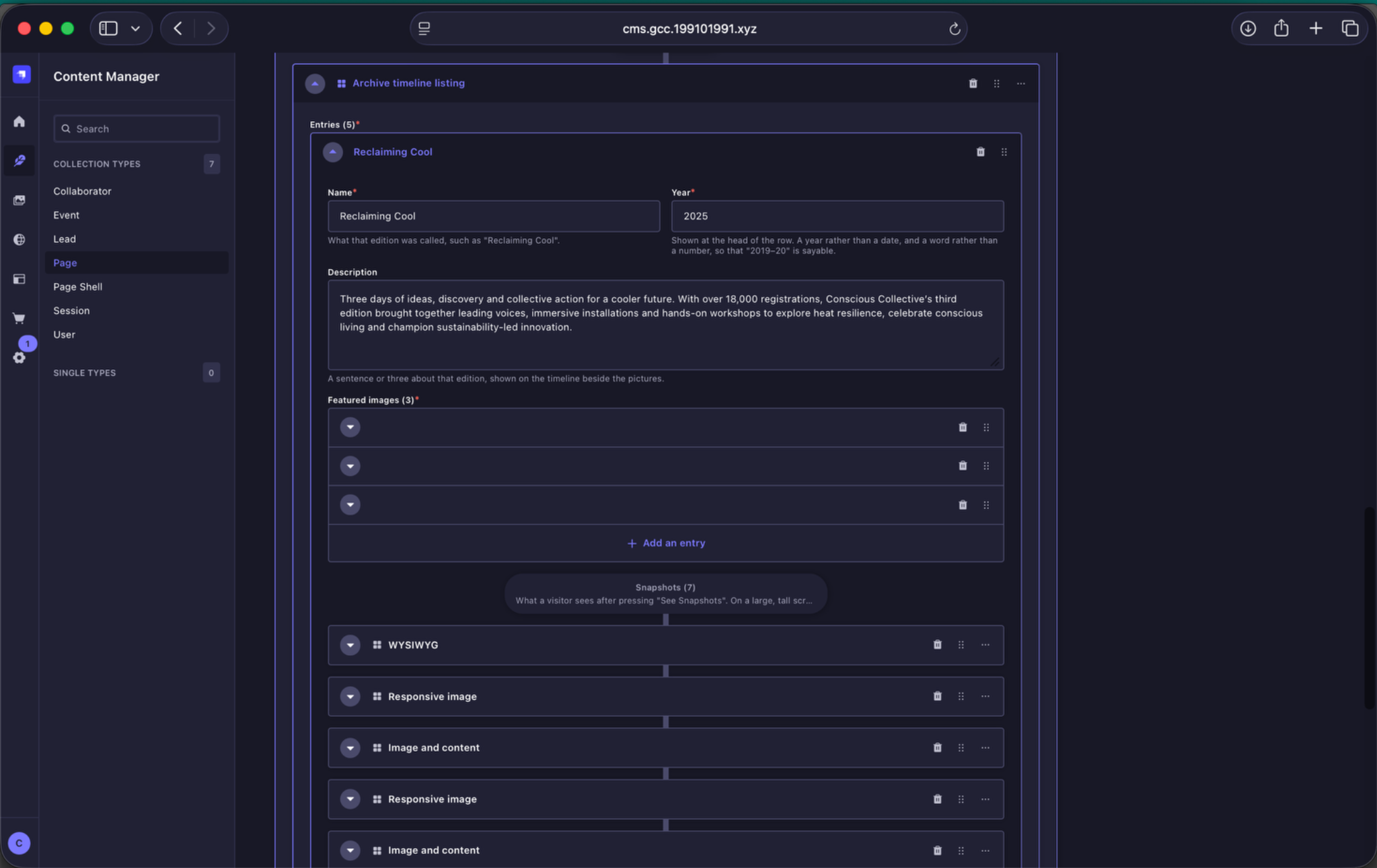
Archive entry and associated modal - The Snapshots region inside each Archive entry contains the blocks used to build that edition's modal content.