
01. Content Authoring Guidelines
Before making changes in Strapi, follow these working practices to reduce the risk of losing content and to make page population easier to manage.
Best Practices
- Do not compose content directly in Strapi. Draft and finalise content in a text file, Word document or Google Doc first. Writing directly in Strapi puts you at risk of losing work if the connection drops or changes are not saved.
- Keep the approved offline content document as the source of truth. Work page-wise so the document maps clearly to the CMS, and update it whenever final copy changes.
- Populate content in small chunks. Add one logical section at a time rather than filling an entire page in one go.
- Save frequently and preview constantly. The best way to work in Strapi is to populate content in small chunks, save often, and preview the page as you go. This lets you see how the content is translating on the actual website, catch layout or formatting issues early, and correct them before moving too far ahead.
- Do not use Strapi as an image archive. Strapi should only be used to upload the files required for the website. It does not preserve original image files as an archival source.
- Be aware that EXIF data is stripped on upload. In some cases, this may cause an image to rotate. If that happens, rotate and save the image correctly before uploading it again.
- URL fields have a maximum length of 255 characters. URLs longer than this cannot be stored in these fields, so use a shorter destination URL where necessary.
- Avoid changing structural settings unless required. Do not casually change page layouts, Page Shell relationships, section order or design controls that are part of the established website structure.
- Follow the separate Image Guidelines and Content Length & Formatting Guidelines. These sections provide the source of truth for image preparation, text lengths, naming conventions and formatting rules.
Save, Preview and Publish
The right-hand sidebar on each entry contains the main controls used while editing and publishing content.
- Use Save to store the draft you are currently working on. Saving updates the backend entry without making the changes live on the website.
- Use Open preview to review the draft before publishing. The preview allows you to compare the draft version with the currently published version of the same page, so you can check how the edits are translating on the website.
- Use Publish only when the content is ready to go live. Publishing is what pushes the latest version live and makes the page available at its public URL.
- Use the three-dot menu next to the Publish and Save controls for additional actions. This includes Unpublish, which removes a live page from the website, and Discard changes, which clears unsaved edits.
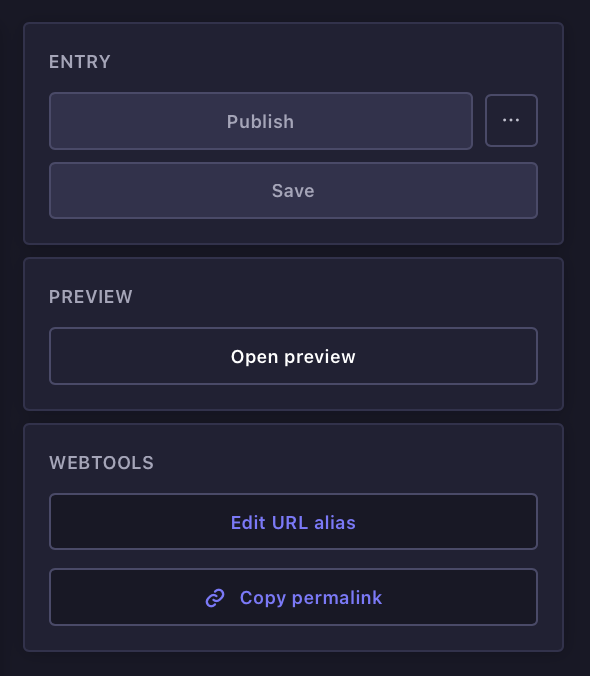
Entry controls. Use Save to keep the current draft, Publish to take the latest version live, and Open preview to review how the page is translating before publishing.
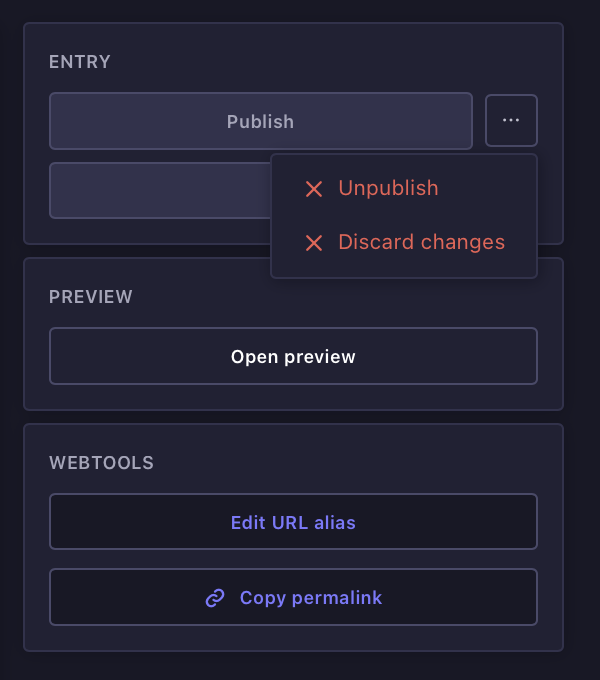
More actions menu. The three-dot menu provides additional controls, including Unpublish for taking a live page offline and Discard changes for removing unsaved edits.

Previewing draft and published versions. Use Preview to compare the draft and published states of the same page and confirm the changes before taking them live.
Recommended working rhythm: Populate → Save → Preview → Adjust → Continue.