
11. Schedule Page
The Schedule Page is auto-populated. Content editors do not need to manually add Sessions to this page.
The schedule is generated from two sources:
- Annual Event settings - these define the overall event dates and therefore how many event days appear on the schedule.
- Session instances - these define which Session appears on which day and at what time.
Do not edit the Schedule Page structure unless there is a specific design or development requirement. The actual programme is generated automatically from the Event and Session data.
11.1 How the Schedule Is Populated
When the annual Event is set up, its First Day and Last Day determine the event date range shown on the Schedule Page. Refer to 05. Managing the Annual Event for the overarching Event setup.
Sessions are then placed into the schedule according to the Instances defined within each Session entry. The schedule automatically groups them by event day and time.
11.2 Repeat Sessions
A Session only needs to be created once in the CMS, even if it happens more than once during the event.
If a Session has multiple Instances, it will appear multiple times on the Schedule Page according to the date and time of each instance. For example, the same Session may appear on Day 1 at one time and again on Day 2 at another time.
Multiple appearances on the Schedule Page do not mean that duplicate Session entries have been created. They are multiple scheduled instances of the same Session.
11.3 Download Schedule PDF
The Schedule Page also includes a Download Schedule button. This downloadable file is not generated automatically by the CMS.
The schedule PDF must be designed separately outside the CMS and uploaded at the Event level for that year's edition.
To upload or replace the file:
- Go to Content Manager → Event.
- Open the relevant annual Event, for example Conscious Collective 2027.
- Locate the Schedule Document field.
- Upload the final schedule as a PDF.
- Save the Event entry.
The Download Schedule button on the Schedule Page uses the PDF uploaded in this Schedule Document field. Each annual Event can therefore have its own downloadable schedule file.
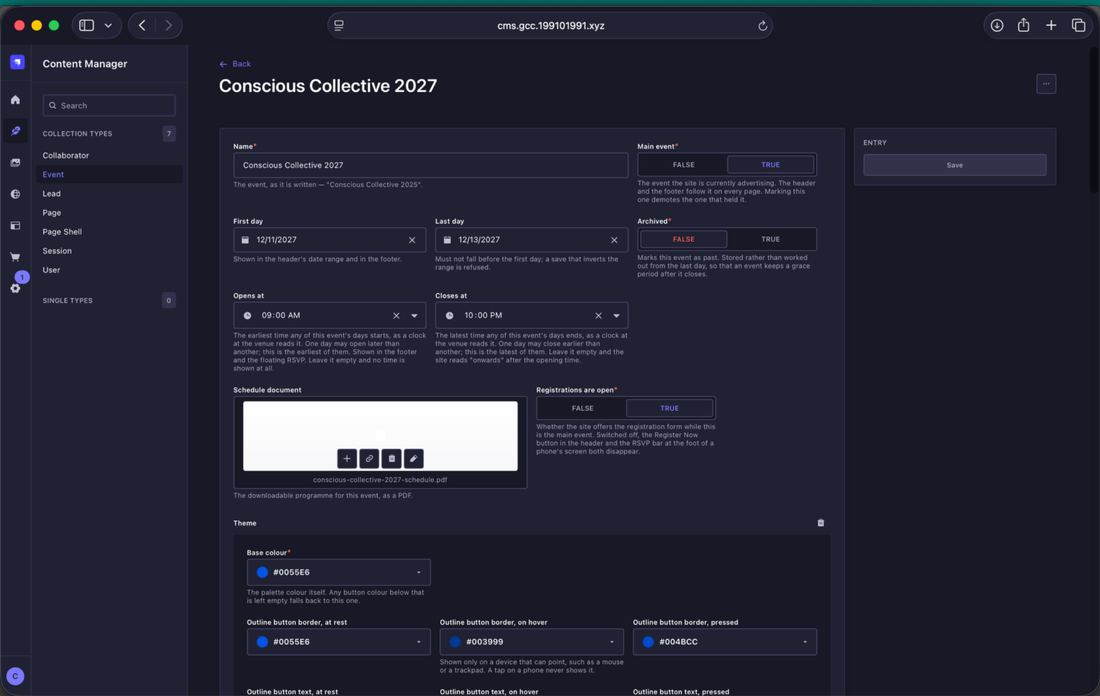
Where to upload the yearly schedule PDF. Go to Event → Conscious Collective 2027 and upload the final PDF under Schedule Document. This is the file used by the Download Schedule button on the Schedule Page.