
16. Privacy Policy
The Privacy Policy is a text-heavy page made up of separate sections. Each section should be maintained as its own content block so that the policy stays structured and easy to update.
Important - legal review required before go-live.
The copy currently entered in the CMS is placeholder/sample content only. It must be replaced with accurate, approved content and reviewed by the legal team at Godrej & Boyce Mfg. Co. Ltd. (G&B) before the website goes live. Cocomo Studio cannot be held responsible for placeholder legal content that remains on the live website, or for the legal accuracy, completeness or suitability of copy supplied or approved by the client.
16.1 Page Setup
Go to Content Manager → Page → Privacy Policy. The page uses the standard two-column layout and the Primary Page Shell.
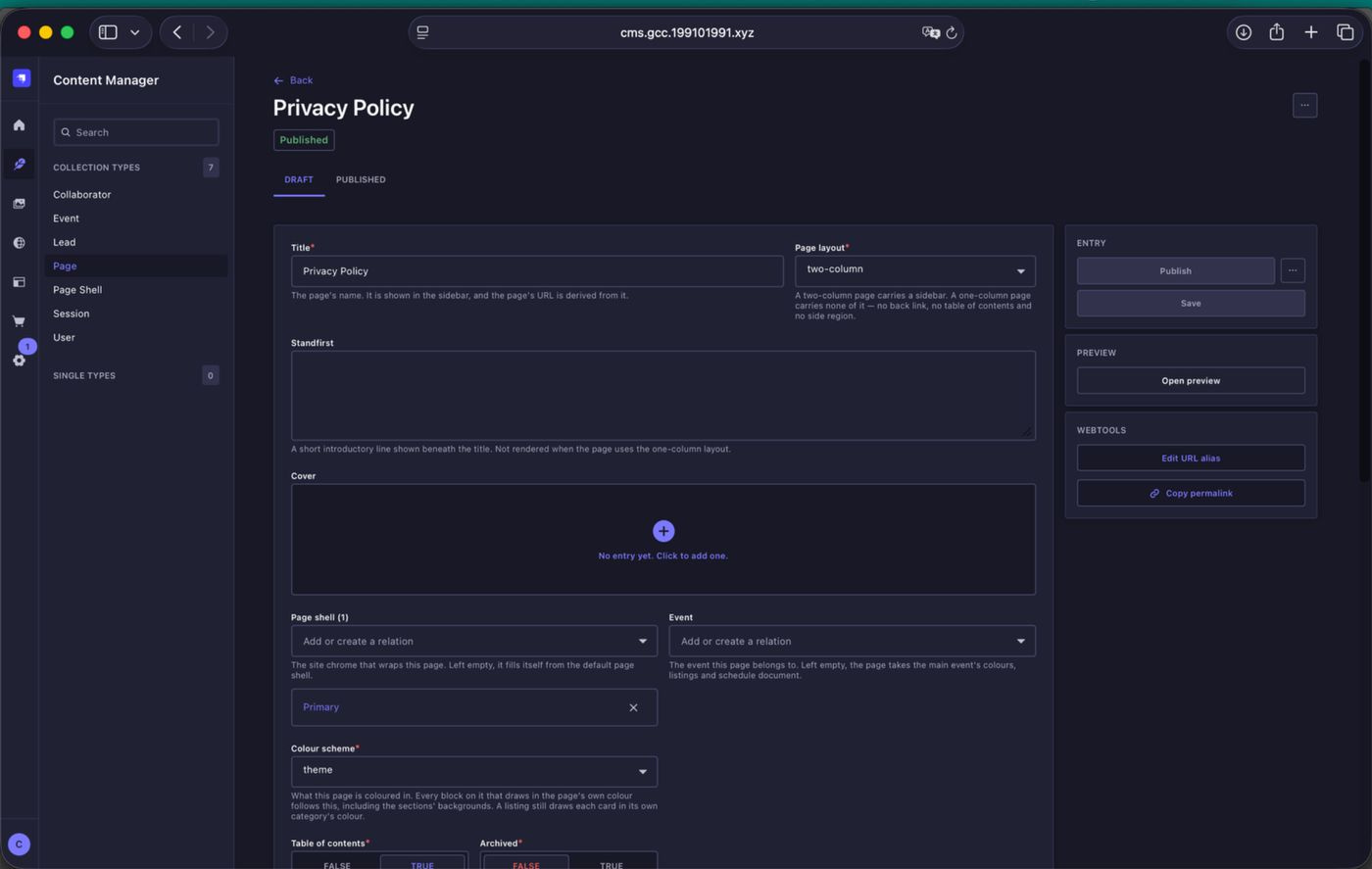
Privacy Policy page setup. Open the Privacy Policy entry under Page. The page itself uses the standard two-column structure; the policy content is managed further down within the Main region.
16.2 Section Structure
Create a separate section for each part of the Privacy Policy. The current setup uses individual sections such as Introduction, Collection and Use of Personal Data, Offers and Opportunities, Legitimate Processing of Information, Children, data sharing, data transfer, retention and Cookies.
This keeps long legal content manageable and allows each section to retain its own heading and WYSIWYG content block. Do not combine the full policy into a single large text field.
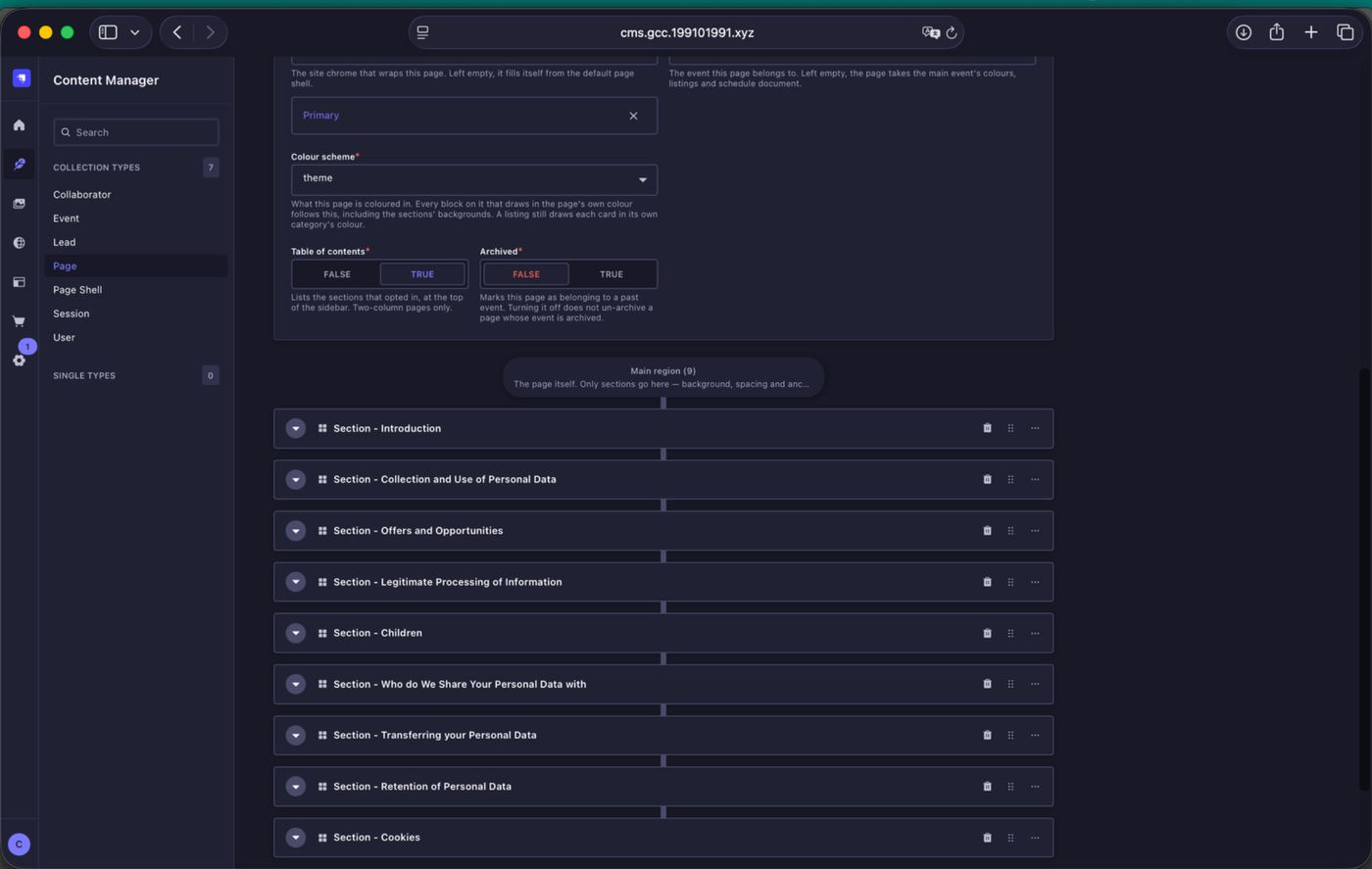
Privacy Policy section structure. Each policy topic is created as its own section in the Main region.
16.3 Entering and Formatting Copy
Enter the approved policy text inside the WYSIWYG component within each section. The editor supports normal paragraphs and common formatting controls, including numbered and bulleted lists.
- For a standard bullet treatment, highlight the relevant copy and select Bulleted list.
- For the inset boxed list treatment used in the design, first create the bulleted list, then place the cursor within the list items and press Tab to indent them by one level.
- The indented/nested list is what triggers the boxed treatment on the frontend. Use this only where the approved design requires that treatment.
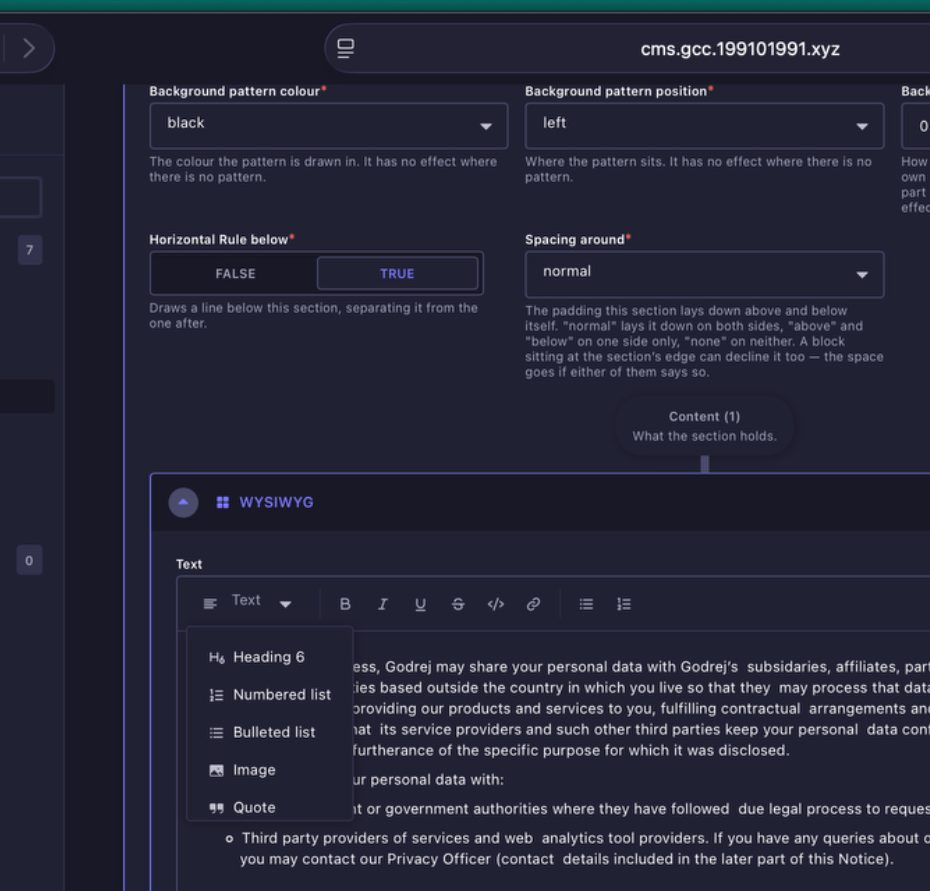
Formatting lists in the WYSIWYG editor. Use Bulleted list for the standard treatment. Indent the list with Tab when the content needs to render as the inset boxed list.
16.4 List Treatments on the Frontend
The frontend supports two visual treatments for bulleted content: a normal list within the page flow, and an indented list that renders inside a bordered box. The content hierarchy in the WYSIWYG editor determines which treatment is shown.
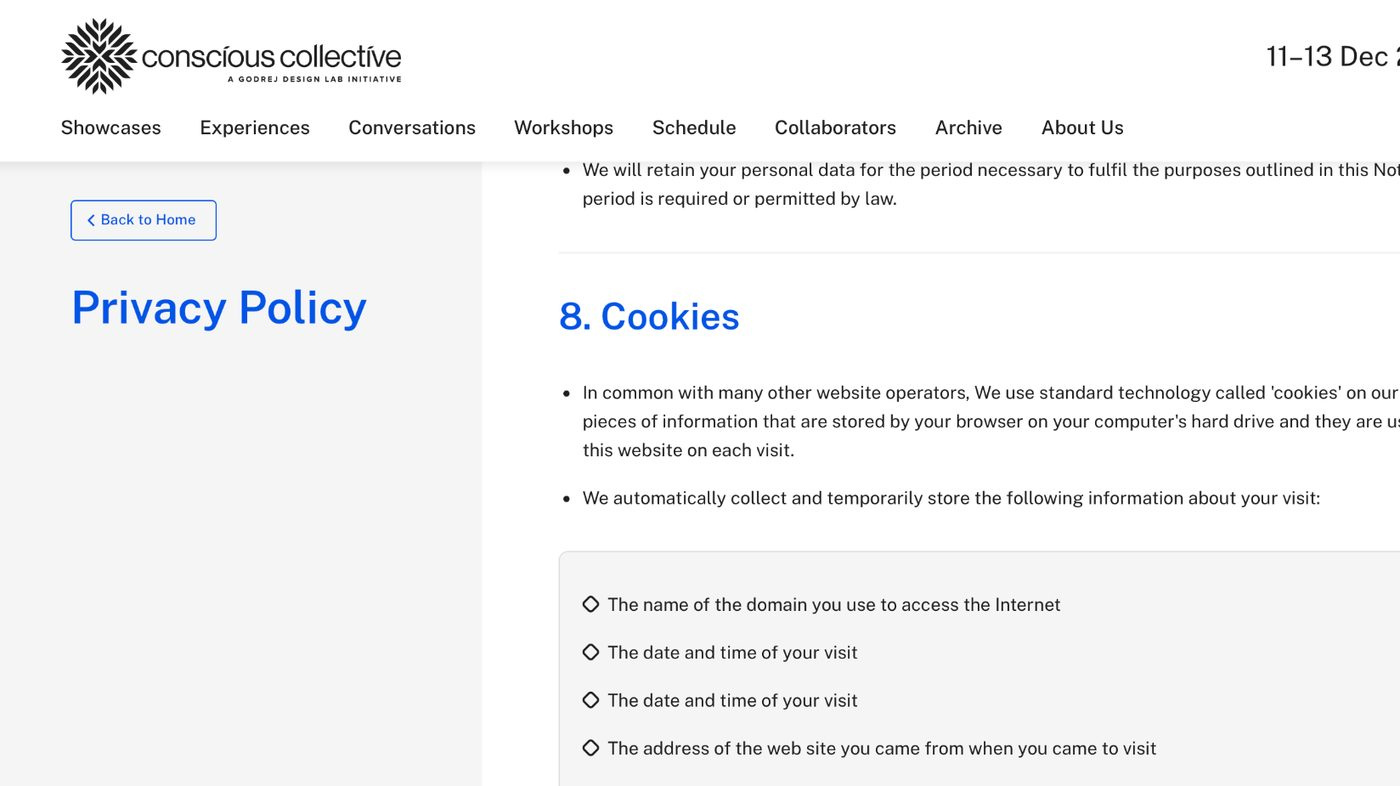
Example of the inset list treatment. The boxed list shown on the frontend is created by indenting the bulleted list one level in the WYSIWYG editor.
16.5 Before Publishing
Before publishing the Privacy Policy, confirm that the entire policy has been supplied or approved by the relevant legal team at Godrej & Boyce Mfg. Co. Ltd. (G&B). Preview the page after formatting to check section order, paragraph spacing, list hierarchy and the boxed list treatments before making the final version live.